---
author:
- "by [Eugeniy E. Mikhailov](http://physics.wm.edu/~evmik/) and [Greg
Bentsen](https://physics.wm.edu/~gbentsen/)"
title: Introduction to python
---
# Basics of Python
## Installing python
Once we download Python from it official web site
Two ways to start it
- `python` the most basic version
- `ipython` which stands for interactive python
- it gives some extra features especially when we will need to
plot or debug
## Calculator
``` python
>>> 1+2+3+4
10
# this is comment line intended for human
# python itself does not care what is written here
>>> 3 + 5.
8.0
# note .0 at the end, we are working with floating points now
```
Remember that simple math with integers can do arbitrary precision
``` python
>>> 10**600 + 10**30 + 2*10**50
1000000000000000000000000000000000000000000000000000000000000000000000000000000000000000000000000000000000000000000000000000000000000000000000000000000000000000000000000000000000000000000000000000000000000000000000000000000000000000000000000000000000000000000000000000000000000000000000000000000000000000000000000000000000000000000000000000000000000000000000000000000000000000000000000000000000000000000000000000000000000000000000000000000000000000000000000000000000000000000000000000000000000000000000000000000000000000000000000000000000000000000000200000000000000000001000000000000000000000000000000
# unfortunately output does not fit on a slide
```
## Variables and assignment operator
Very handy to use variables (i.e. aliases to numbers or other values).
``` python
>>> a=345.23
>>> b=2.4
>>> a/b
143.84583333333336
```
Note that `=` reads as **assign to be**, it is not an equality
``` python
>>> a=34
>>> b=11
>>> a=b
>>> # what is a? what is b?
>>> a
11
>>> b
11
```
## Editing the inputs
The command line interface really shines when you need to modify you
input based on previous inputs
### Line editing
It depends on you setting, but the default is usually EMACS `readline`
library shortcuts
- `Ctrl+w` delete a word before cursor
- `Crtl+k` delete the rest of the line *after* the cursor
- `Crtl+y` delete the rest of the line *before* the cursor
- `Ctrl+ArrowLeft` or `Ctrl+ArrowRight` move cursor one word left or
right
### Tab completion
- if python knows about function or variable name you do not need to
type the full name
- just start the beginning and hit `Tab` key, it will offer you
reasonable choices
### Reusing *history*
- type `ArrowUp` or `ArrowLeft`, to scroll through previous commands
- hit `Ctrl+r` and type search string
There other tricks, but above are my favorite and most used
## Package import
As we discussed the advance math functions were afterthought for Python.
So we need to get them into context of the python execution. We will use
`math` library (collection of methods) which in Python called `module`.
We will use words: library, module, or package interchangeably
``` python
>>> import math
# Above loads math library, or import it to Python context.
# Now we have many useful function, routines, and goodies.
# They will all start with `math.` So typing is a bit wordy
# e.g. `math.sin` instead of just `sin`
>>> math.pow(2,3) # i.e. 2^3, we can get same result by 2**3
8.0 # note that math function works with floats even though 2 and 3 are integers
```
If you want to see what else is imported from `math` module. Type
`math.` and see the choices.
## Help related commands
This is where `ipython` really shines over bare bone `python`. If you
type name of the method and a question mark, you will get a help
description (if it exists)
``` python
In [1]: import math
In [2]: math.pow?
Signature: math.pow(x, y, /)
Docstring: Return x**y (x to the power of y).
Type: builtin_function_or_method
In [3]: math.degrees?
Signature: math.degrees(x, /)
Docstring: Convert angle x from radians to degrees.
Type: builtin_function_or_method
```
Of course we can always search online for available functions and their
descriptions. In this case see
## Plotting
Another useful package which commonly used for plotting is
[matplotlib](https://matplotlib.org/stable/). There are others but this
one quite common.
``` python
In [1]: %matplotlib
Using matplotlib backend: qtagg
In [2]: import matplotlib.pyplot as plt
...: # note that we made an alias `plt` for `matplotlib.pyplot`
...: # so we can type less
In [3]: plt.plot([1,2,3,2,1])
Out[3]: []
```
## Lists and Arrays
What is `[1,2,3,2,1]`?
It is the `list` of numbers something which could be assign to a
variable and used letter
``` python
>>> x = [1, 2, 3, 2 , 1]
>>> plt.plot(x)
```
List can store anything, so it does not have to be just number it can
keep other things.
``` python
>>> y = [1, 2, "I am string", 33, 3]
>>> y
[1, 2, 'I am string', 33, 3]
```
But while it is very powerful idea, in numerical word the `array` is
more useful.
Array is the list of similar type objects, in our case numbers. Then we
are able to do operations on arrays in one go. But we need another
package: `numpy`.
Note: It is possible that we need to install `numpy` separately. One of
the ways:
``` python
pip install numpy
```
``` python
>>> import numpy as np
>>> x=np.array([1,2,3,4])
>>> x
array([1, 2, 3, 4])
>>> x*3
array([ 3, 6, 9, 12])
>>> x+2*x
array([ 3, 6, 9, 12])
```
By the way, `numpy` also has math functions but it can do a more
powerful things
``` python
>>> x
array([1, 2, 3, 4])
>>> x**3
array([ 1, 8, 27, 64])
>>>
>>> y=[2, 3, 4, 1]
>>> x-y
array([-1, -1, -1, 3])
```
## Data import and export
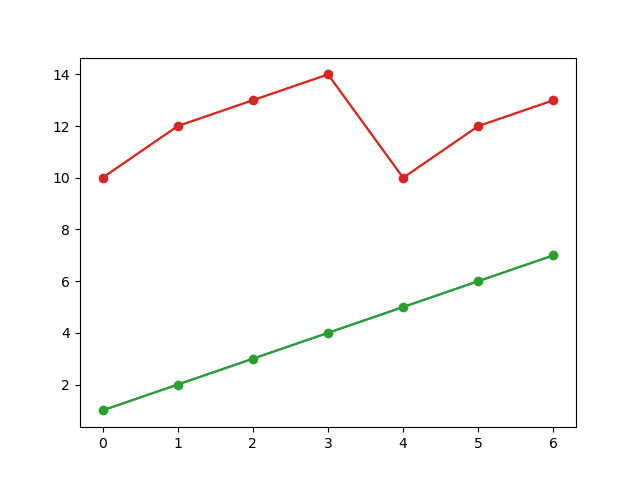
Typing arrays is quite error prone and besides programs need to exchange
data in a more efficient way.
Coma separated values (CSV) is quite good for it. It is not the most
storage efficient but it is human readable and many external tools
understand it.
Content of the file `data_example.csv`
``` csv
col1, col2
1, 10
2, 12
3, 13
4, 14
5, 10
6, 12
7, 13
```
``` python
import numpy as np
data=np.loadtxt('data_example.csv', delimiter=',', skiprows=1)
import matplotlib.pyplot as plt
plt.plot(data, "o-")
plt.savefig("data_plot.png") # export our image in to the figure file in `png` format
```